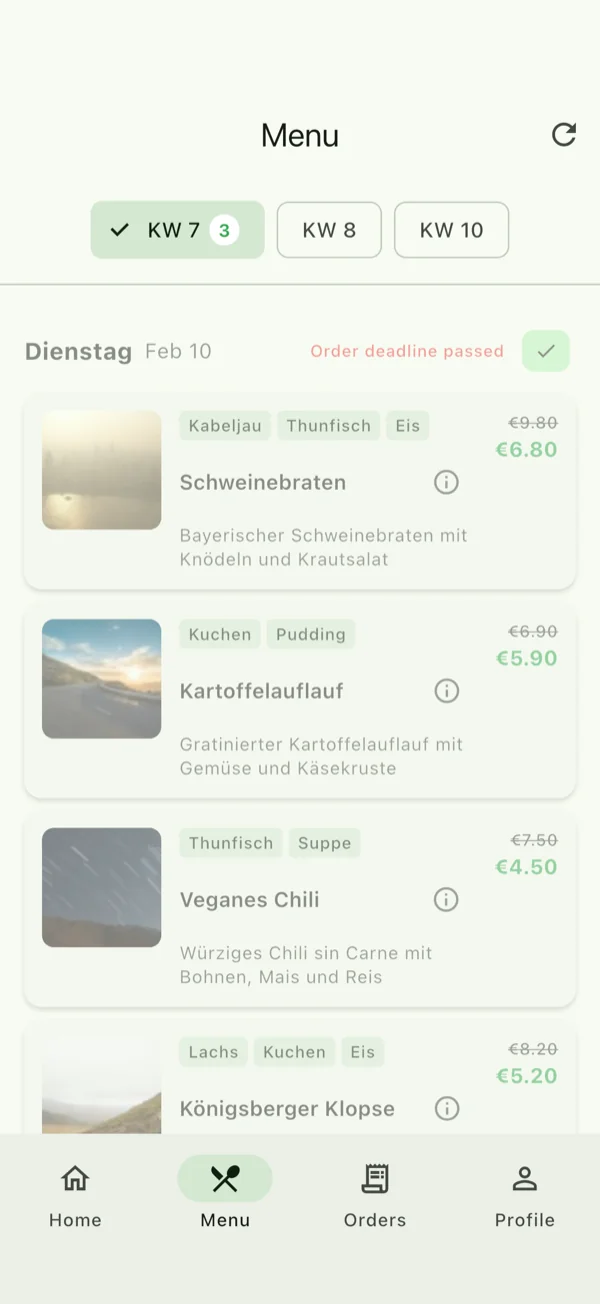
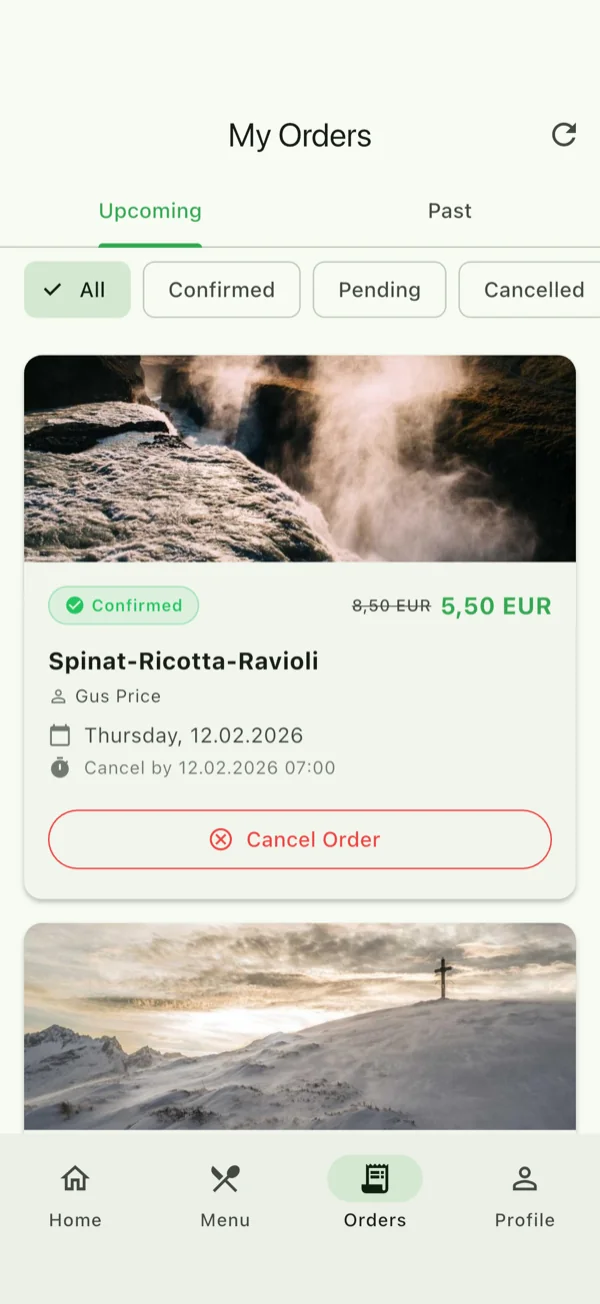
Welcome to Mega Meal
Your institution sent you an invitation with a code. This guide gets your child signed up in no time.
This page walks you through four easy steps. Just follow them in order – it only takes a few minutes. You do not need to be good with technology.
Install the app
First, download the free Mega Meal app to your phone. Tap the button for your iPhone or your Android phone, then open the app.
Create your account
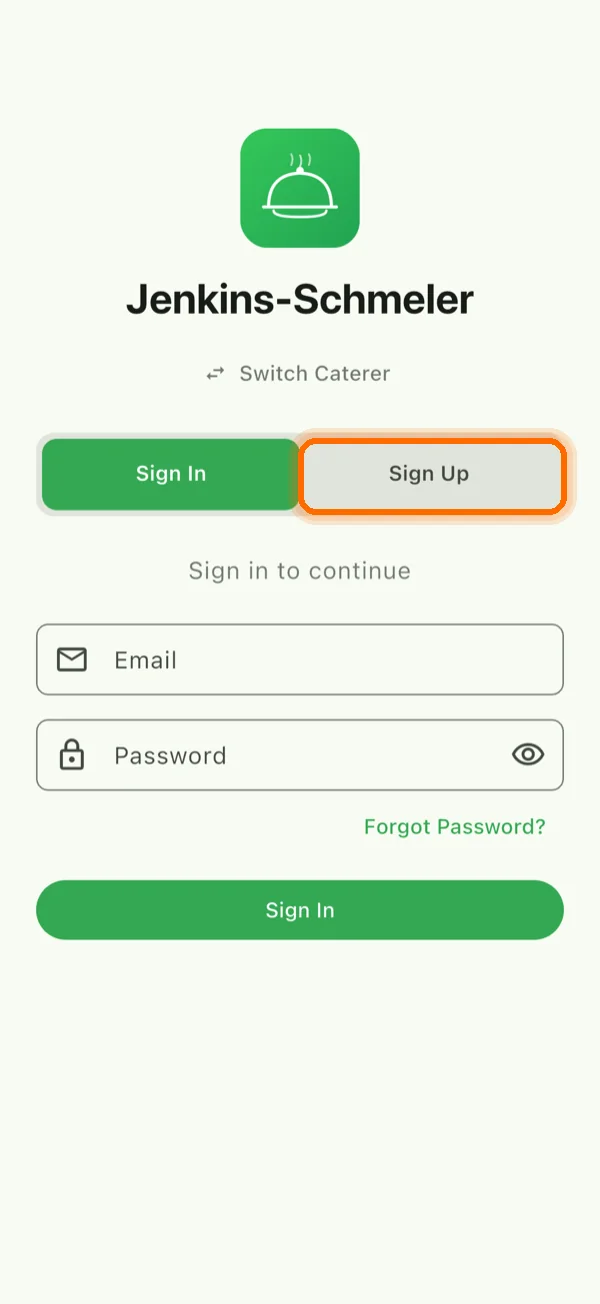
Open the app. Tap “Sign up” and enter your email address, or simply sign in with Apple or Google. Then type in your name.
Add your child
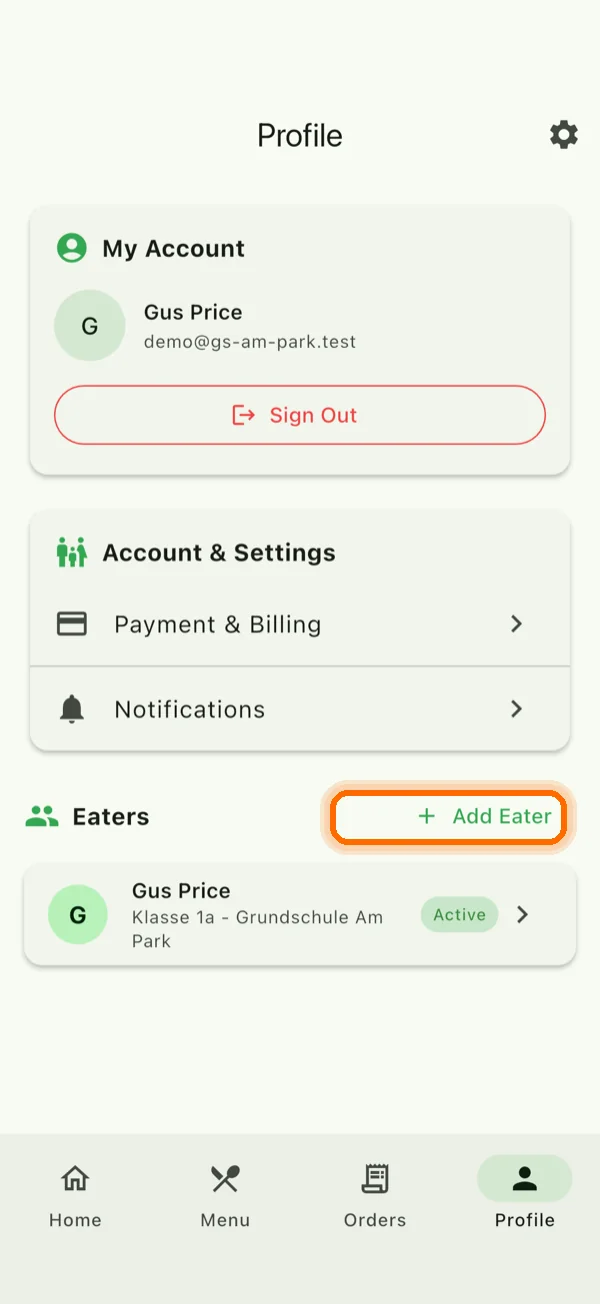
Tap the green “+ Add Eater” button and enter your child’s name. Then enter the invitation code – this tells the app which daycare or school your child belongs to.
Enter this code:
YOUR-CODEThis is the exact code you enter in the app.
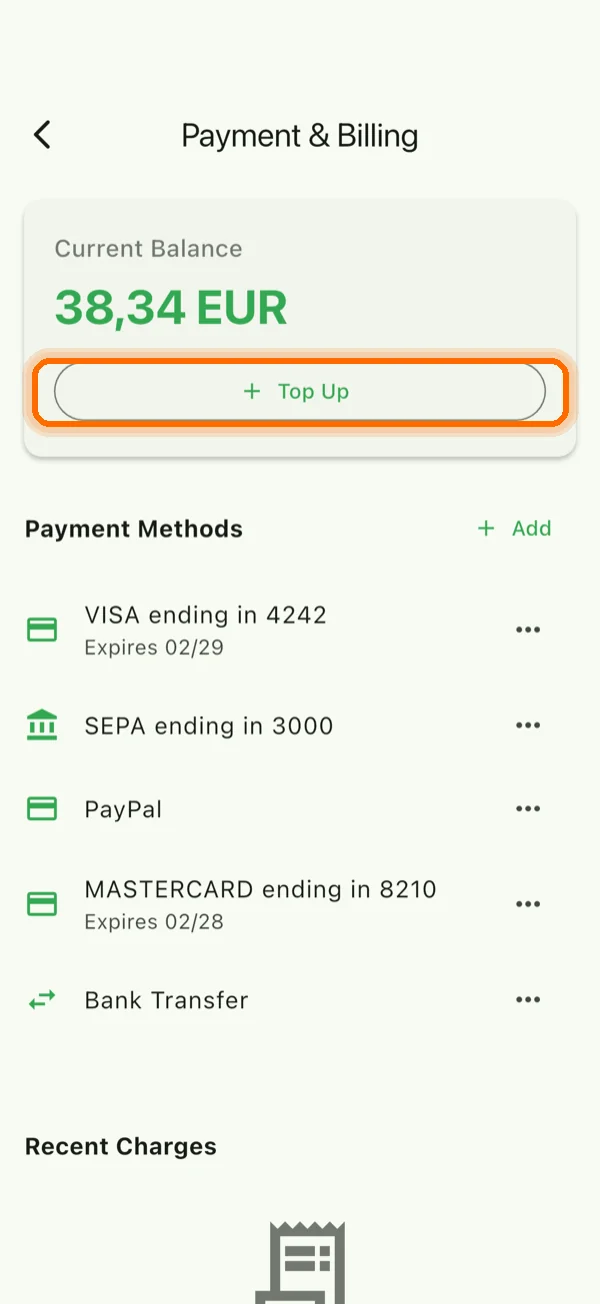
Add a payment method
Choose how you would like to pay, and top up some credit if needed. If your institution or company pays for the meals, you do not need to add any credit here.
Order meals
Open the weekly menu, tap the days your child should eat, and confirm your order at the bottom. Done!